I'm not an editor. The first time I tried to turn raw footage into a finished YouTube video with AI, I did it manually, step by step, working out every building block that goes into editing long-form content.
Then I turned that process into a repeatable setup. I call it vibe editing: you describe the edit in plain English and let AI do the clicking. My latest video was edited by Claude Opus 5.5, and in it I walk through the exact stack and the prompt that took 13 raw lesson clips and turned them into one full course.
The four building blocks
1. Raw footage from Tella
I record in Tella. My "How to build an AI knowledge base" series lived on YouTube as 13 individual lessons, and I wanted one cohesive video someone could binge in a single sitting. In the Tella portal you can select every clip and export them all at once, subtitles included. That gives you a folder of raw clips to work from.
2. DaVinci Resolve 21.1 over MCP
Version 21.1 is where Resolve's MCP capability comes in, and MCP is what lets Claude drive the timeline. There are two ways to set it up. On the free route you stay on the version right before 21.1 and add an open-source GitHub repository that mocks the MCP. If you upgrade, you get a native integration out of the box. In my experience the native route has been much smoother for vibe edits.
Resolve handles the core edit: removing dead space and clipping, and keeping everything in sync.
3. Hyperframes for B-roll and animation
Hyperframes is an open-source product from HeyGen. Once the edit is done in Resolve, it adds the B-roll, transitions, and animations. It runs as a skill: copy the Hyperframes skill into your Claude setup, have Claude read it, and Claude already knows how to use it.
4. Claude Opus 5.5 as the editor
Claude Opus is the overall intelligence. It works through a YouTube skill I built after doing all of this by hand the first time. That skill orchestrates the whole process, from planning and research to packaging (title, thumbnail, intro), the edit, and the description and tags in YouTube Studio.
The prompt
I ran this in Claude Desktop, inside the second-brain project that holds my skills. This is the objective, word for word:
Objective: use the /youtube-editing skill to edit the Build Your Business Brain (Full Course) into a single Youtube video. Ensure the introduction of the video leverages engaging B-Roll and Animations from the raw footage. Ensure the audio matches the visuals. If you'd like inspiration for B-Roll and Animations there are examples in the hyperframes catalog available here: https://hyperframes.heygen.com/catalog - You can use my Chrome browser and computer use if it makes sense to do this as well. For the outro, ensure there is a CTA (call to action to subscribe) if/where appropriate. The clips are attached as tella-videos.zip folder.
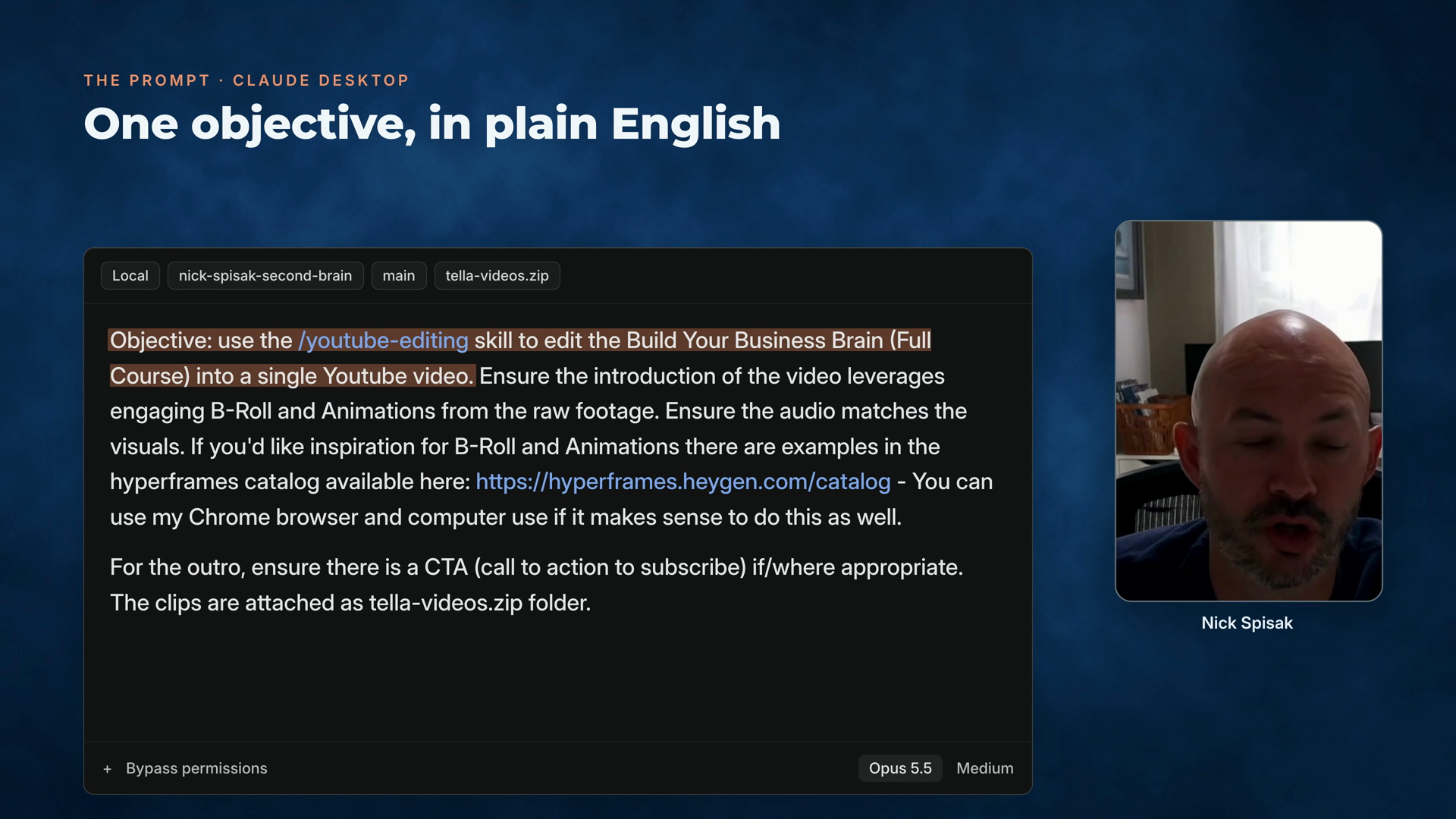
The prompt on screen at 4:43 in the video.
I set the model to Opus 5.5 on Medium and turned on bypass permissions so it could do its work.
The prompt has no timecodes, cut list, or track layout. It names the skill, the job, what the result should include, where to find inspiration, and how the video should end.
The result
It took a couple of hours of agent time. As I put it in the video, it "did end up cooking everything in like, pretty much a one shot."
The output is the full Build Your Business Brain course as one video. For a one-hour course I didn't want anything overly edited, and I think it did a pretty good job.
How the pieces fit
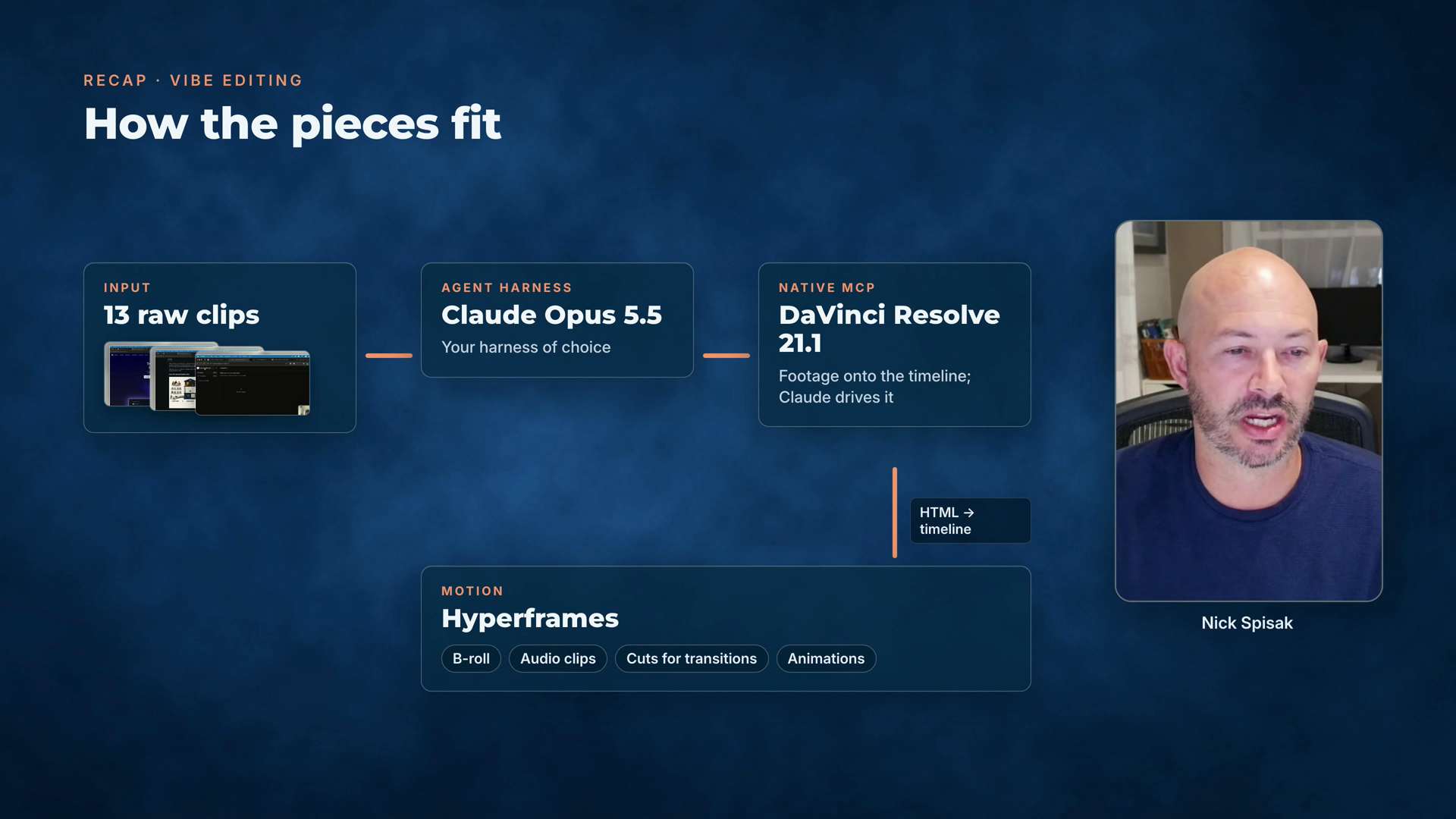
The recap diagram at 8:06 in the video.
-
13 raw clips go into your agent harness of choice. Here, that's Claude Opus 5.5.
-
DaVinci Resolve 21.1 has the native MCP connection, so the footage lands on the timeline and Claude drives the entire timeline process.
-
Hyperframes handles B-roll, audio clips, cuts for transitions, and animations. It takes HTML code and embeds it back onto the Resolve timeline.
-
One YouTube skill wraps all of it, with sub-skills for editing, packaging, description, tags, and thumbnail.
Where to start
You don't need the whole stack on day one. Start with footage you already have:
-
Export your raw clips into one folder.
-
Pick your Resolve route: the free version with the open-source MCP repository, or 21.1 with the native integration.
-
Copy the Hyperframes skill into your Claude setup.
-
Write one objective: what to edit, what it should include, and how it should end.
The first time I did this, I worked through it step by step myself. That exercise is what became the YouTube skill.
Watch the full walkthrough: https://www.youtube.com/watch?v=1yCCuW8Ac7U