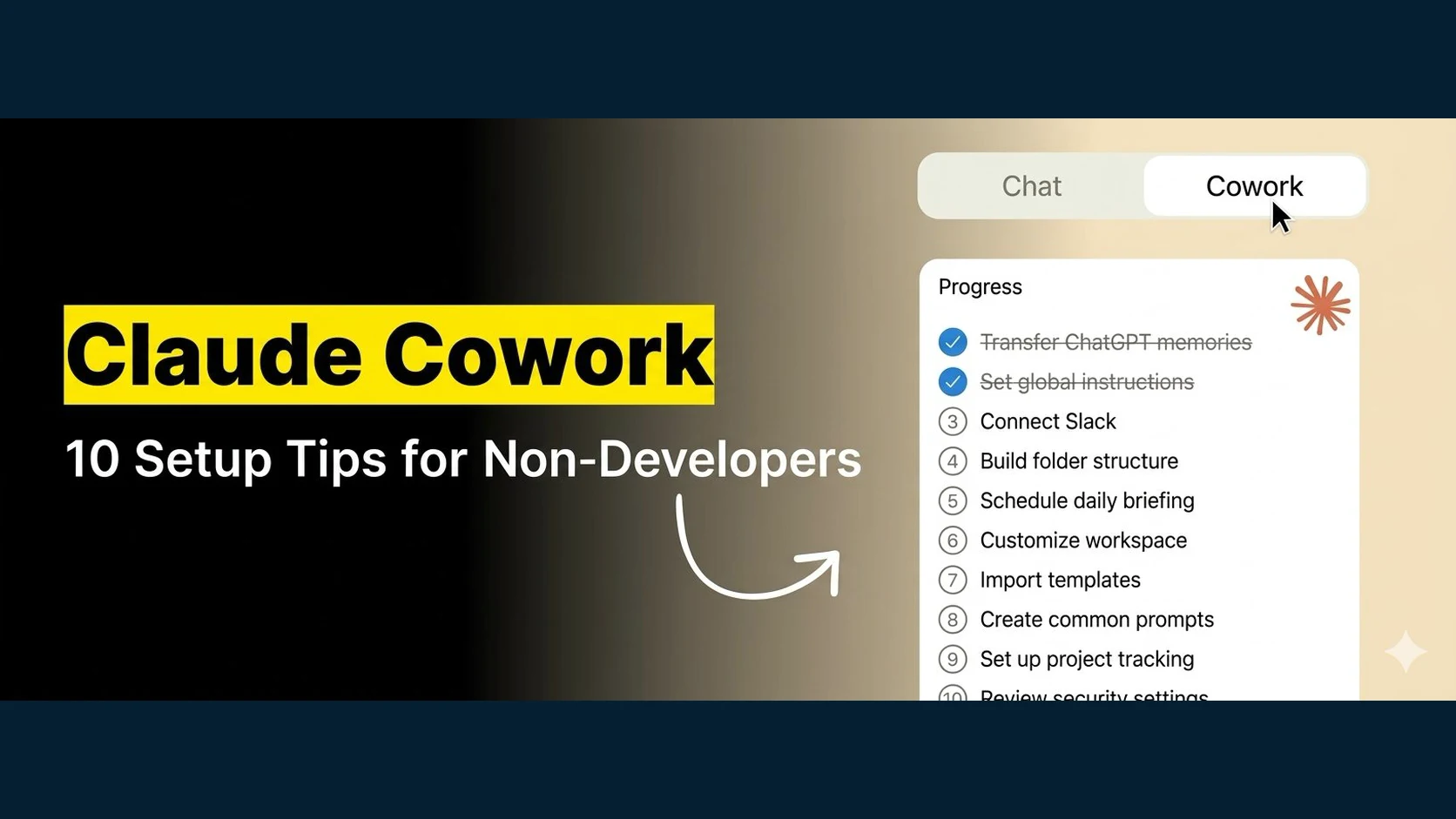
Cowork is a work surface inside Claude Desktop that can operate on files and use configured tools or connectors. What it can reach depends on the current product, your plan, organization policy, authentication, and the permissions you grant. That makes setup more important than a clever first prompt.
I've been building with Claude Code for months, and I set up Cowork configurations for non-technical business owners as part of my consulting work. Most people set it up wrong because they skip the first 30 minutes of configuration. This guide fixes that.
This guide covers:
- How to transfer everything you've taught ChatGPT into Claude (without starting over)
- The global instructions that make every Cowork response actually useful
- How plans and explicit instructions improve review without pretending they are security boundaries
- The folder structure that gives Cowork useful, bounded context
- How plugins, skills, and connectors work together (and which ones to install first)
- A scheduled, read-only daily briefing pattern
1. Transfer Your Memories from ChatGPT (2 minutes)
If you've been using ChatGPT or Gemini, you've spent months teaching it who you are, what you do, and how you like things done. You don't have to start over.
Claude has an experimental memory import flow. Anthropic's current memory import documentation distinguishes two experiences: if you see Settings > Memory, use the current flow there; if Memory appears under Settings > Capabilities, follow the legacy instructions and choose Start import.
Export memory from the previous service, review the text for sensitive or outdated details, then upload only the context you intend Claude to retain. Anthropic warns that experimental imports may not always incorporate every memory. After import, inspect the memory or ask Claude what it learned, correct omissions or mistakes, and keep the original export protected.
2. Set Up Your Global Instructions (5 minutes)
This is the single most important step that most people skip.
Global instructions provide defaults that shape Cowork's behavior. They reduce repeated context, but they do not override product policy or guarantee perfect compliance.
Go to Settings, then the Cowork tab, and click "Edit" on Global Instructions. Write plain English rules about who you are and how you work. Things like: your name, what you do, your preferred output format, how you like to communicate, and safety boundaries (never delete files without asking, never modify folders you didn't point to).
Here's what I tell every client: spend 5 minutes on this now or spend 5 minutes correcting Claude on every single task later. The math is obvious.
3. Ask for a Plan Before Consequential Work
This one trips up everyone who's used to ChatGPT. With a regular chatbot, you type something and it just starts going. Cowork can do that too, but you shouldn't let it.
Asking for a plan gives you a chance to inspect the proposed approach before consequential work. It can improve clarity and catch a mistaken path early.
I add an instruction such as: “Show the planned actions, files, and tools. Wait for my approval before consequential changes.” Then I review the actual requested actions and permission prompts before continuing.
A plan or global instruction is not a permission boundary, sandbox, or guarantee that no file action will occur. Folder selection, operating-system access, connector scopes, tool permissions, and human review enforce the real boundary. Start with a harmless copy of the workspace and verify both allowed and prohibited actions.
4. Build Your Folder Structure
When you start a Cowork task, it asks you to select a folder. This folder is Claude's workspace. Whatever you put in it, Claude can read and use.
Create a main workspace folder (something like "My-Cowork-Workspace") with these subfolders inside it:
context/(files that tell Claude who you are)current-projects/(what you're working on right now)successful-examples/(your best work, so Claude knows what good looks like)
Inside the context folder, create three plain text files: about-me.md, brand-voice.md, and working-preferences.md. You don't need to write these yourself. Go into Cowork, point it to your context folder, and say: "Create these three files. Interview me so you can fill them out." Claude will ask you questions and build them for you.
This is where most people stop. But there's one more folder that changes everything.
That "successful-examples" folder. Put your best emails in there. Your best LinkedIn posts. Your best proposals. Whatever content you produce regularly, give Claude examples of the ones that worked. Now it's not guessing your style. It's reverse-engineering your actual wins.
5. Install Plugins (Your First Three)
Plugins are pre-built instruction sets that give Claude specialized abilities. Think of them as job descriptions. Without a plugin, Claude is a generalist. With one, it's a specialist.
Go to Customize, then Browse Plugins. Start with these three:
- Productivity plugin (built by Anthropic). This one helps Claude manage your tasks, plan your day, and organize your priorities. It's the one I recommend to every single client.
- Any plugin specific to your workflow. If you write newsletters, find a newsletter plugin. If you manage projects, find one for that. The marketplace has dozens.
- A personal plugin you create yourself. This is the secret weapon. Tell Claude: "I want to create a plugin for [your recurring task]. Interview me about what the workflow looks like, then turn it into a plugin file I can install."
Once installed, plugins show up as slash commands. Type / and you'll see them. One command triggers an entire workflow that you defined once and now runs on demand.
I built a personal plugin for running AI tool assessments for my consulting clients. One slash command kicks off the entire process: research, scoring, report generation. What used to take hours now takes one command plus review time.
6. Connect Slack
This is where Cowork goes from "cool" to "how did I live without this."
Go to Customize, then Tools, and connect Slack. Once connected, you can say things like: "What happened in my Slack channels today? Any messages I need to respond to?" Claude reads through your channels, finds the important stuff, and summarizes it.
It can also send messages on your behalf. Draft a response, show it to you, and send it after you approve. That's the plan mode pattern again: show me what you're going to do, wait for approval, then execute.
7. Connect Google Calendar
Same process. Customize, Tools, Google Calendar. Now Claude can see your schedule, tell you what's coming up, find open meeting times, and create events for you.
The real power is stacking this with Slack and email. Instead of checking three apps every morning, you ask Claude one question: "What does my day look like?" and it pulls from all three sources at once.
8. Connect Your Email
Customize, Tools, Gmail. This one completes the trifecta.
Claude can now read your inbox, flag important emails, and draft responses. Key word: draft. I always tell clients to start with drafts, not auto-sends. Let Claude write the email, review it yourself, then send. You build trust with the system over time.
And here's the folder structure trick from step 4 in action: go back to your context folder and add an email-style.md file. Tell Claude to analyze your recent sent emails and extract your writing patterns, tone, and typical structure. Now every email it drafts sounds like you wrote it, not like a robot did.
9. Build Skills for Your Repeating Tasks
Skills are simpler than plugins. A plugin is a full workflow with multiple steps. A skill is a single instruction set: "Here's how I want you to write LinkedIn posts" or "Here's how I want you to create meeting agendas."
Create skills for the 3-5 things you do most often. Then the self-improvement loop: after you workshop a result back and forth with Claude and land on something you love, tell Claude to update the skill based on what worked. The skill gets better every time you use it.
I have skills for writing X articles, LinkedIn posts, newsletter issues, YouTube descriptions, email sequences. Each one is trained on my specific voice and my best-performing examples. That's the difference between generic AI output and output that sounds like it came from you.
10. Schedule Your Daily Briefing
This is the tip that ties everything together. Cowork has a scheduling feature that runs tasks automatically on a recurring basis.
Create a scheduled task that runs on an appropriate cadence. Tell it to read only the approved Slack, email, and calendar scopes, cite what it found, and produce a briefing without sending or modifying anything.
Choose the execution location deliberately. Current cloud scheduled tasks can run without a device online when their sources are cloud-accessible. Tasks tied to local folders or apps run locally and depend on the machine and Desktop environment. Recheck Anthropic's current scheduling documentation because this behavior can change.
When you open your laptop in the morning, the briefing is already there. No checking Slack. No scanning your inbox. No looking at your calendar. Claude already did all of it and organized it by priority.
I run scheduled tasks for content pipeline operations, but the daily briefing is the one I recommend to every non-technical person I work with. It's the fastest way to feel the difference between "I use AI sometimes" and "AI works for me."
That's the ten-step setup. The time varies with connectors, permissions, data cleanup, and testing. A configured Cowork is still a tool, not an employee: you own its access, review its output, and remain responsible for the actions it takes under your identity.
The first Cowork response is not a fair evaluation of a system with no reviewed context. Start with one narrow task, inspect the requested access and result, then improve the setup from evidence.
The goal is dependable leverage: useful context, narrow permissions, reviewed drafts, and schedules whose execution boundary you understand.